Run your processors from the command line
Now that you have a wonderful library of processors that are exported as plugins to MAFw, you can benefit from an additional bonus, the possibility to execute them without having to code any other line!
When you have installed MAFw in your environment, an executable file mafw has been put in your path, so that if you open a console and you activate the python environment, you can run it.
Just try something like this!
(env) C:\>mafw -v
mafw, version 0.0.5
If you get this message (the version number may vary), you are good to go. Otherwise, check that everything was installed correctly and try again.
This executable is rather powerful and can launch several commands (see the full documentation
here), but for the time we will focus on three.
List the processors
Before doing anything else, it is important to check that your processor library has been properly loaded in MAFw. To check that, run the following command from the console.
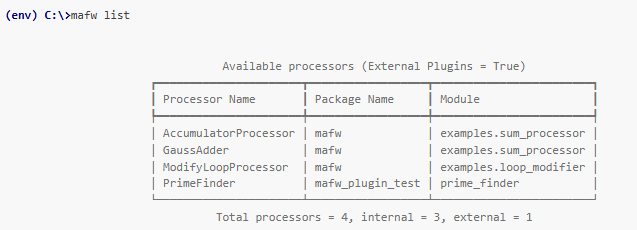
The output should be a table similar to the one above, containing a list of known processors in the first column, the package where they come from in the second and the module in the third one.
If you have exported your processors correctly the total external processors should be different from zero.
Prepare a generic steering file
The next step is to prepare a steering file. We do not want you to open your text editor and start preparing the TOML file from scratch. MAFw can prepare a generic template for you that you have to adapt to your needs before running.
(env) C:\>mafw steering steering-file.toml
A generic steering file has been saved in steering-file.toml.
Open it in your favourite text editor, change the processors_to_run list and save it.

To execute it launch: mafw run steering-file.toml.
This command is generating a generic steering file with a list of all processors available (internal to MAFw and imported from your library) with all their configurable parameters. You can pass the option –show to display the generated file on the console, or even more practical the –open-editor to open the steering file in your default editor so that you can immediately customize it.
Here below is an example of what you will get. The content may vary, but the ideas are the same.
 1# MAFw steering file generated on 2024-11-21 16:54:22.455297
 2
 3# uncomment the line below and insert the processors you want to run from the available processor list
 4# processors_to_run = []
 5
 6# customise the name of the analysis
 7analysis_name = "mafw analysis"
 8analysis_description = "Summing up numbers"
 9available_processors = ["AccumulatorProcessor", "GaussAdder", "ModifyLoopProcessor"]
10
11[AccumulatorProcessor] # A processor to calculate the sum of the first n values via a looping approach.
12last_value = 100 # Last value of the series
13
14[GaussAdder] # A processor to calculate the sum of the first n values via the so called *Gauss formula*.
15last_value = 100 # Last value of the series.
16
17[ModifyLoopProcessor] # Example processor demonstrating how it is possible to change the looping structure.
18item_to_abort = 65 # Item to abort
19items_to_skip = [12, 16, 25] # List of items to be skipped.
20total_item = 100 # Total item in the loop.
21
22[UserInterface] # Specify UI options
23interface = "rich" # Default "rich", backup "console"
The TOML file contains some tables and arrays that should be rather easy to understand. There is an important array at line 4 that you need to uncomment and to fill in with the processors that you want to run. For all known processors, there is table with all the configurable parameters, you can change them to your wishes. You do not need to remove the configuration information of the processors that you do not intend to use. They will be simply ignored.
If you have commented your Processor classes properly, the short description will appear next to the table.
You can customize the analysis name and short description to make the execution of the steering file a bit nicer. In the UserInterface section, you can change the way the processor will interact with you. If you are running the steering file on a headless HPC, then you do not need to have any fancy output. If you like to see progress bars and spinners moving, then select rich as your interface.
Environment variable expansion
Standard TOML parsers do not interpolate variables. MAFw extends the steering file parsing step with environment variable expansion, so any string value can reference runtime variables.
The expansion follows standard bash-style grammar:
output_path = "${DATA_DIR}/results"
cache_dir = "${CACHE_DIR:-/tmp/mafw-cache}"
db_url = "${DB_URL:?Define DB_URL before running}"
This makes steering files portable across machines or batch systems, because the same file can adapt to different file layouts or execution environments without manual edits.
You do not like the idea of opening a text editor and manually change the values of the processor parameters? No worries, we have you covered and developed for you a very user friendly GUI tool to create valid steering files without having to get crazy with TOML syntax. But before jumping to the GUI user guide, finish this session!
Run the steering file
Here we are, finally! Now we can run our analysis and enjoy the first results.
From the console type the following command:
(env) C:\>mafw run steering-file.toml
and enjoy the thrill of seeing your data being processed. From now on, you have a new buddy helping you with the analysis of your data, giving you more time to generate nice and interesting plots because MAFw will do all the boring stuff for you!
Debugging your processors
When you execute your processors from the command line using mafw and something does not work as expected, you may want to debug your processors to fix the problem. Normally you would turn back to your IDE and click on the debug run button to follow your code line by line and see where it fails.
The problem here is that the module where you have coded your processor is not running, it just contains the definition of the processor! You would need to create an instance of your processor and to execute it in a standalone way, but then you would have to set the parameters manually. In other words, it is going to be slow and problematic and MAFw wants to alleviate your problems, not to create new ones!
The best way is to run the mafw executable in debug mode from your IDE inserting a breakpoint in your processor code.
In PyCharm, you would create a new python configuration launching a module instead of a script. See the screenshot below.
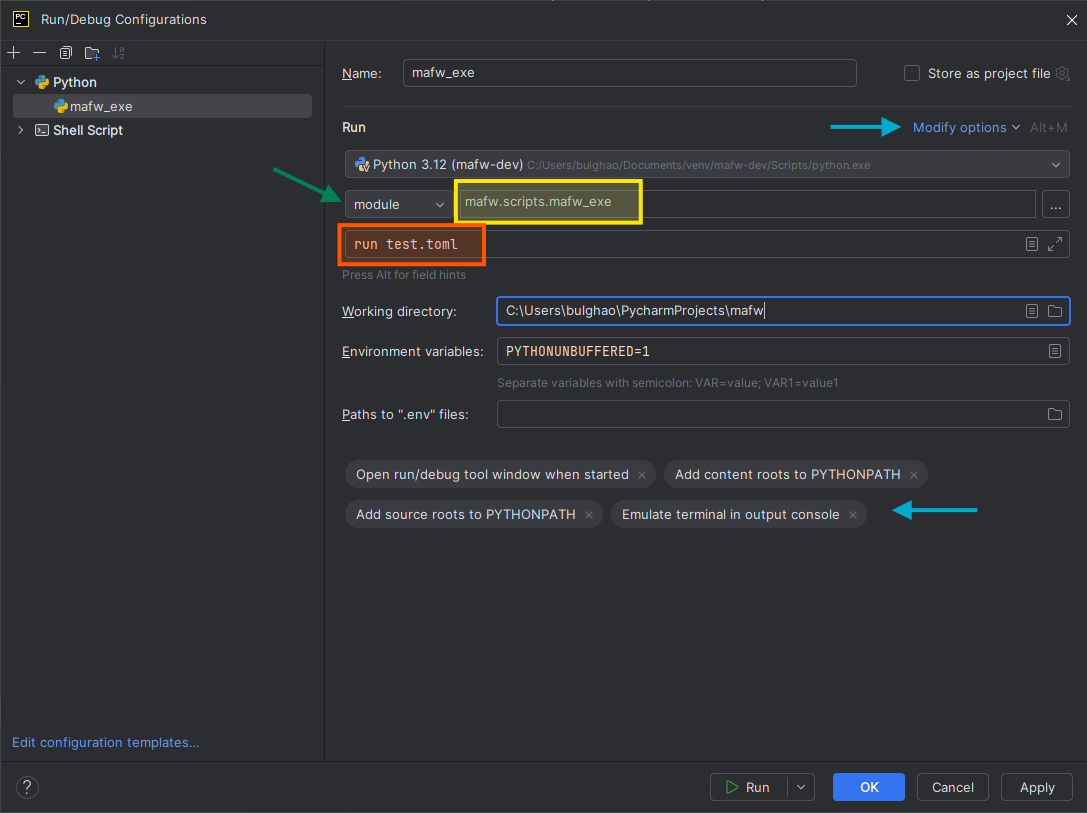
Fig. 1 The PyCharm configuration for running mafw_exe from your plugin module. It can be particularly helpful to execute your processor in debug mode.
The three most important points have been highlighted. First of all, you need to select module and not script from the drop down menu indicated by the green arrow. In the text field next to it (yellow in the screenshot), write mafw.scripts.mafw_exe. MAFw is installed in the environment where your plugins are living, so PyCharm will complete the module name while writing. In the text field below (orange in the screenshot) write the command line options as you were doing from the console. Optionally, if you want to enjoy the colorful output of the RichInterface, click on the Modify options (top blue arrow) and add Emulate terminal in output console. The corresponding label will appear in the bottom part as indicated by the blue arrow. The disadvantage of this decision is that the console will become readonly, so you want be able to enter python statement while the code execution is stopped.
Running more instances of the same processor
Can I run the same processor twice? Of course, you can. MAFw is here to facilitate your life, not to make it even more difficult. In the steering file, you set the list of processor to be executed in the array processors_to_run. The execution workflow will follow exactly the order you enter the processor in the list. If you want to run the same processor twice, or multiple times, just put its name in the list in the position you want to run it.
If you want your multiple instances to use different processor parameter values, then have a look at the steering file below:
processors_to_run = ['MyProcessor', 'MyProcessor#1', 'MyProcessor#2']

[MyProcessor]
param1 = 'base_value'
param2 = 10

["MyProcessor#1"] # note the quotation around the name
param1 = 'value_1'
The processors_to_run array contains three elements, the first is our processor, while the other two are still our processors but we have added a # followed by a number (actually it could have been any other string, not necessarily a number). In MAFw terminology, the string after the # is called the replica id and it is used to identify uniquely a processor inside the steering file.
When mafw is executing the steering file, it will parse the elements in the processor_to_run array and instantiate each processors using the base name (the part on the left of the # sign). During the parameter configuration, each processor will look for a section with either its base name (MyProcessor in this case) or its so-called replica aware name (MyProcessor#1 and MyProcessor#2 in this example). By default, the parameter configuration follows a kind of inheritance scheme. It means that when a processor is listed with its replica_name, take ‘MyProcessor#1’ for example, the processor configuration will first load the base configuration and then update it with the replica specific one. In the case of MyProcessor#1, this will result in the value of param1 being set to ‘value_1’, while param2 will be 10. The last processor, ‘MyProcessor#2’ does not have a replica specific section, so it will use the parameter settings as defined in the base section.
Warning
TOML allows to have only alphanumeric digit plus dashes and underscores in a bare key. This means that section for replicas aware processors must be quoted otherwise the # will trigger a parsing error.
If you do not want to have this inheritance between the replica and the base configuration, you can switch it off for a single replica setting the keyword __inheritance__ to false in its table like this:
["MyProcessor#2"]
__inheritance__ = false
In this case, the processor configuration will only use the parameters defined in the replica specific table. For all missing parameters, the default value defined in the code with of the processor.ActiveParameter definition.
Grouping processors together
Another interesting features of the MAFw steering file is the possibility to join processors in groups, so that they will be added to the main processor.ProcessorList as a nested processor.ProcessorList. Imagine, for example, that in your pipeline you have several processors (or processor replicas) all dedicated to generate simulated data, and another group focused on the analysis of real data. You can then prepare a steering file like this:
processors_to_run = [ 'Simulation', 'RealData']
analysis_name = 'full-pipeline'
analysis_description = """Full pipeline"""

[Simulation]
name = 'simulation-pipeline' # optional
description = 'Simulation pipeline' # optional
processors_to_run = ['SimulProc#123', 'SimulProc1', 'PlotProcessor#Simul'] # compulsory

[RealData]
name = 'real-data-pipeline'
description = 'Real data pipeline'
processors_to_run = ['RealDataProc', 'AnotherProcessor', 'PlotProcessor#Real']

# do not forget to add a section for each of the processors
This steering file will run the main processor list containing two other processor lists. The advantage is that if you decide to skip the simulation, you just have to remove one single item from the main processors_to_run variable. For each processor group you can optionally add a name and a description, while the processors_to_run list must be present all the time. You can even add groups to groups, the only thing you cannot do is do add a cyclic recursion; in such a case, MAFw will detect it and raise an error.
The exit code
The MAFw executable is always releasing an exit code when its execution is terminated. This exit code follows the standard convention of being 0 if the process was successful. Any other number is a symptom that something went wrong during the execution.
You will get an exit code different from 0 whenever, for example, you have not provided all the required parameters or they are invalid. You can also get an exit code different from 0 if your processor failed its execution.
Keep in mind that the MAFwApplication is actually dynamically generating and processing a processor.ProcessorList according to the information stored in the steering file. The exit code for the whole app is linked to the output of the last executed processor in the list.
The reason for this is clearly explained. We have seen in a previous section that the execution of a processor.ProcessorList can be modified using the ProcessorExitStatus. This parameter can assume three different values: Successful, Failed and Aborted. In MAFw convention, when a processor is aborted, then the execution of the processor list is immediately interrupted, thus resulting in the MAFw executable to return a no zero exit code.
On the contrary, when a processor exit status is Failed, the execution of the processor list is continued until the end of the list or the first processor terminating with an Abort status. The MAFw executable exit code is affected by the the processor exit status of the last executed processor, so it might be zero even if there were several processors with Failed exit status in the middle of the list.
The use of the exit code is particularly relevant if you want to execute MAFw on a headless cluster. You can, for example, trigger retry or logging actions when the execution fails.
Commands abbreviation
The MAFw executable is based on the very powerful click library and allows the execution of complex nested commands with options and arguments.
You can get the list of available commands (for each level) using the -h option and keep in mind that MAFw allows you to shorten the command as long as the command selection will be unique, so actually mafw list and mafw l are both accepted and produce the same effect.
Shell completion
MAFw also exposes shell TAB completion through the completion command group. The feature is available for bash, zsh and fish only.
Install it in the active virtual environment with:
mafw completion install
Issuing this command will install the mafw completion in the local virtual environment and will make it available the next time you activate the environment. The installer writes the generated completion script into the virtual environment, updates the activation script, and then asks you to exit and re-enter the environment so the new hook can be loaded automatically.
If you only want to activate directly (but not in a permanent way) the completion functionality, use:
eval "$(mafw completion show)"
What’s next
You believed we were done? Not really. We have just started, this was just the appetizer! Get ready for the next course, when we will enjoy the power of relational databases!