Steering Files
This chapter describes how to create and manage steering files in MAFw. Before reading this chapter be sure to be familiar with the basic concept of MAFw, like processors, parameters and filters, otherwise you won’t be able to understand what we are talking about. Steering files are TOML documents that define the analysis pipeline, including global variables, database connection settings, user interface preferences, and the list of processors to be executed.
Steering GUI User Guide
Writing steering files by hand can be a daunting task. While TOML is a human-readable format, it is easy to make a typo in a processor name, forget a mandatory parameter, or create a circular dependency between groups. To make your life easier, MAFw provides a graphical tool to generate and edit these files in a user-friendly way.
Why use the Steering GUI?
Error prevention: No more worrying about TOML syntax or misspelled keys. The GUI ensures that the file is always well-formatted.
Automatic validation: As you build your pipeline, the GUI checks for common mistakes like missing references or cyclic group definitions.
Schema alignment: The GUI knows what parameters each processor expects. It automatically shows the correct editors for each field, so you don’t have to look up the documentation every time.
Installation
The Steering GUI is not installed by default because it depends on PySide6, which is quite a heavy library and you do not need the steering GUI on a headless computational container. If you want to use it, you need to install it explicitly.
You can install it using pip:
pip install mafw[steering-gui]
Or, if you are developing MAFw and using hatch:
hatch run optional:steering-gui
Note
You might notice that the test coverage for the GUI is not as high as for the rest of the framework. This is intentional: we focus our testing efforts on the scientific “business logic” to ensure your results are always correct. Testing graphical interfaces is notoriously difficult and would significantly slow down our development and continuous integration.
Once installed, you can run the GUI either from the command line in your virtual environment with steering-gui or you can make a link to the binary file on your desktop and launch it with a double click.
General Operation
When you launch the Steering GUI, you are greeted with a traditional desktop layout.
File Menu: Use this to create a New steering file, Open an existing one, or Save your progress.
- Main Window: The window is split into two parts:
Pipeline Tree (Left): Shows the structure of your steering file, including Globals, Database, UI, and all your Processors and Groups.
Editor Area (Right): Changes depending on what you have selected in the tree.
Context Menus: Almost everything in the GUI has a right-click menu! If you are stuck or want to see what else you can do (like adding a new processor or removing a filter), just try right-clicking on an item.
The Editors
Metadata Editor
When you select the top-level item in the tree, you’ll see a summary of your analysis. This includes the analysis name and a quick count of how many processors and groups you have configured.
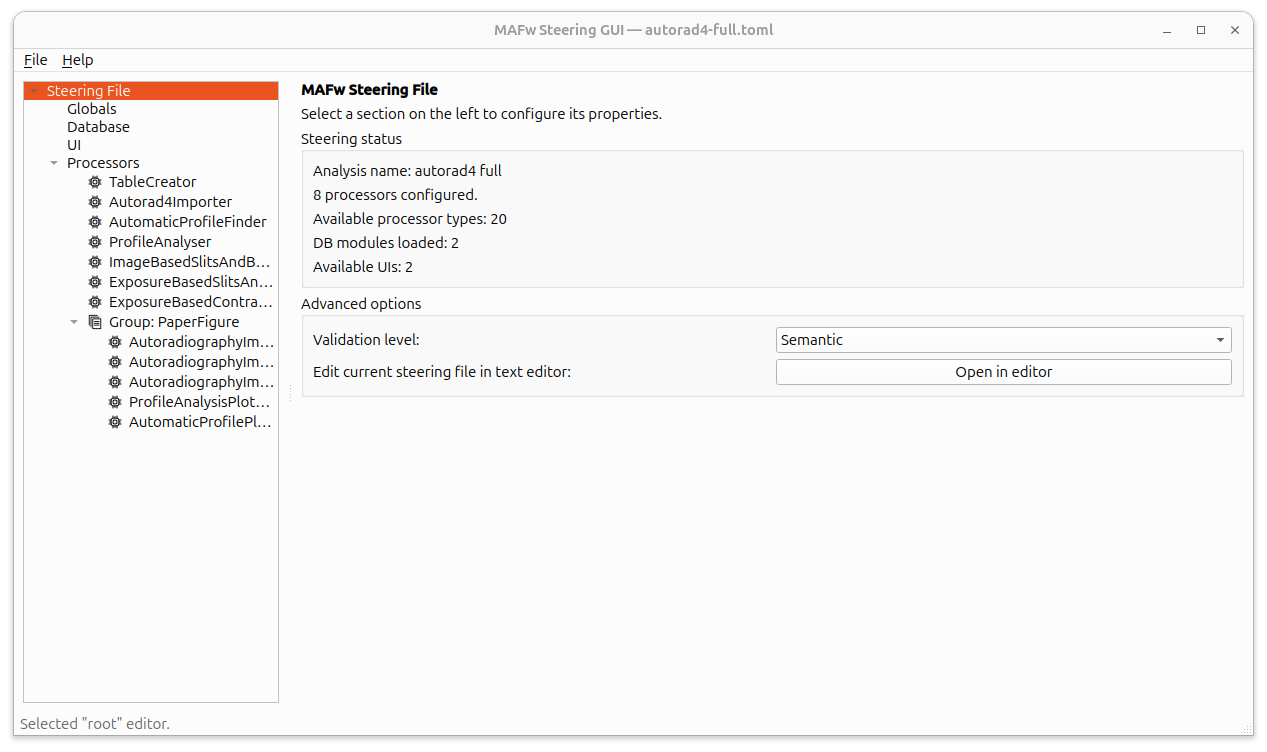
If you ever feel the need to see the raw TOML or make a quick manual change, there is a Open in editor button that will open the current state of the file in a custom text editor with TOML syntax highlighting and live validation. It won’t be as intuitive as with the GUI, but at least you won’t make stupid typo mistakes.
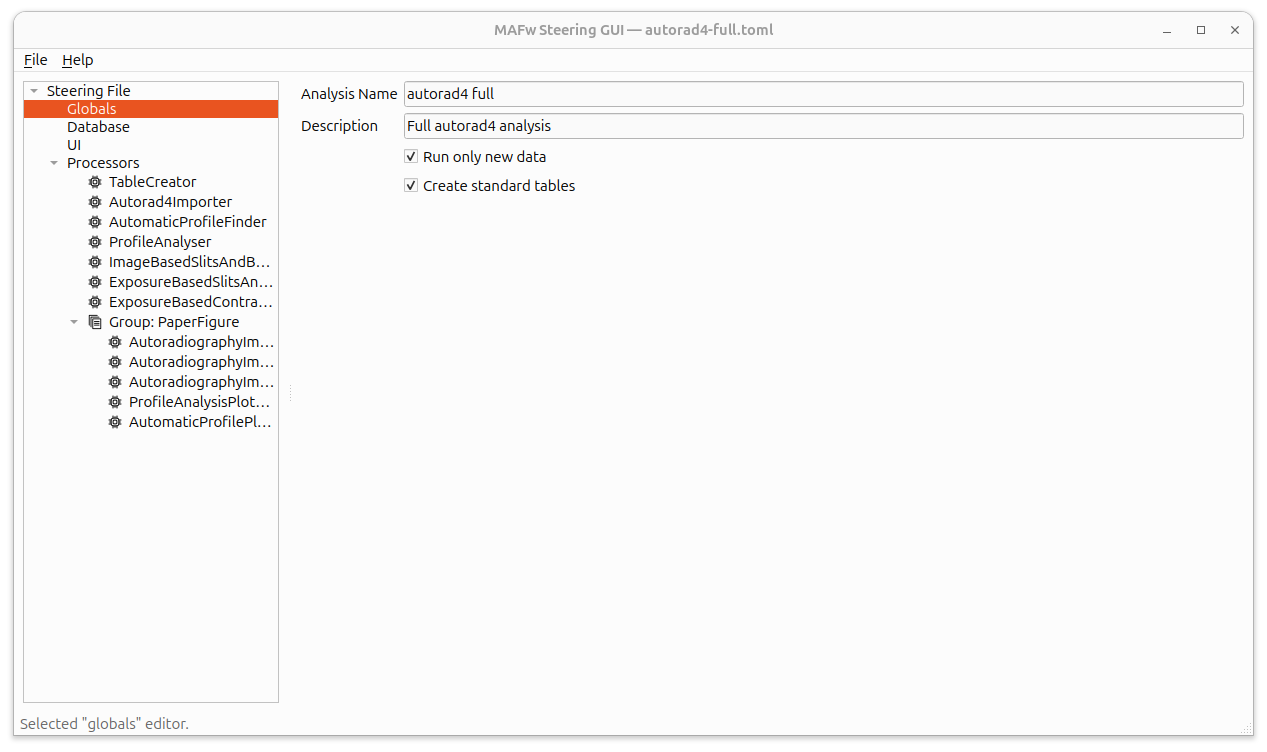
Globals Editor
Here you can set the analysis name and description along with globally valid switches for the processing of new_only data and the creation of standard database tables.
Database Editor
Configure how MAFw connects to your database. You can choose the database backend (SQLite, PostgreSQL, MySQL) and provide the necessary credentials and connection details. Have a look at here for more details. Clicking the Test connection button you will have the chance to verify if your setup is really able to connect to the database, anticipating possible connection issues.
The database editor is divided into three main widgets resembling the three structural layers in the database section in the steering file: the transport end point (URL), the authentication layer and the parameter section. The URL field in the GUI is read-only, the user should modify either the path (for SQLite) or the host, port and database for the server based databases.
For the authentication, you can choose among the three available methods, inline meaning that username and password will be written as plain text in the steering file, environmental variables, meaning that instead of encoding the username and password, the steering file will contain the name of environmental variables pointing to the actual username and password. The last, and most secure, option is to provide the path to a password file.
In the parameter section, the user can append other parameters / values to be passed to the peewee connect function. This is something for advanced users, so be aware of what your are doing. In case of doubts, just click on the test connection to see if it works or not.
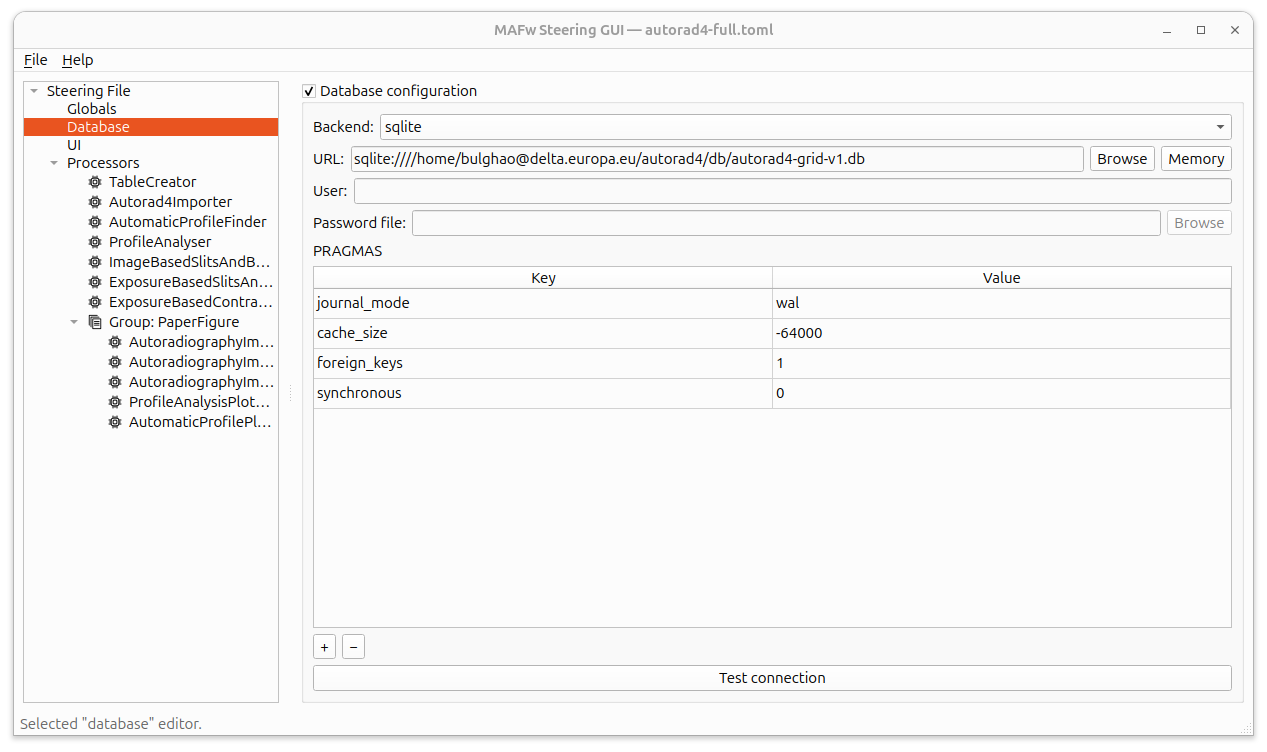
If you do not want to have any database for your analysis, just unchecked the Database configuration at the very top and no DBConfiguration table will be encoded in the steering file.
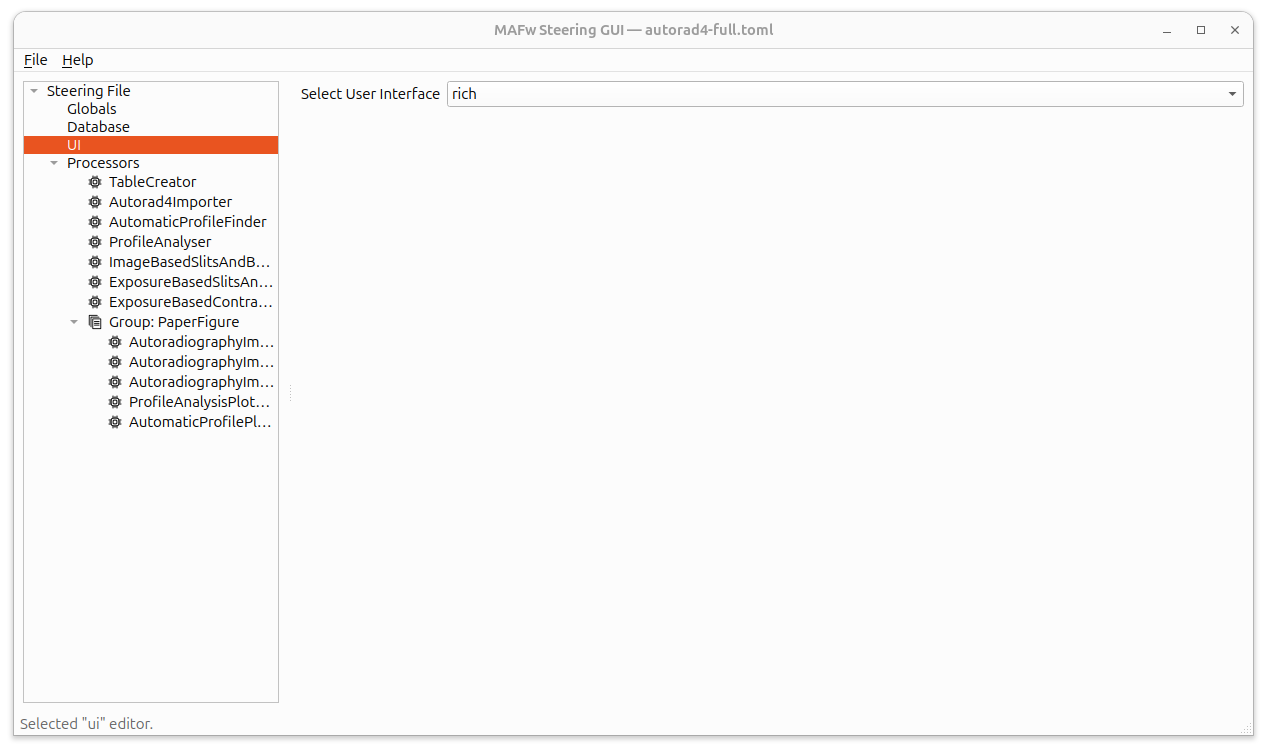
UI Editor
Decide how MAFw should talk to you during execution. You can choose between a simple console output, a rich text interface, or, if you have installed them, other available plugins.
Pipeline Editor
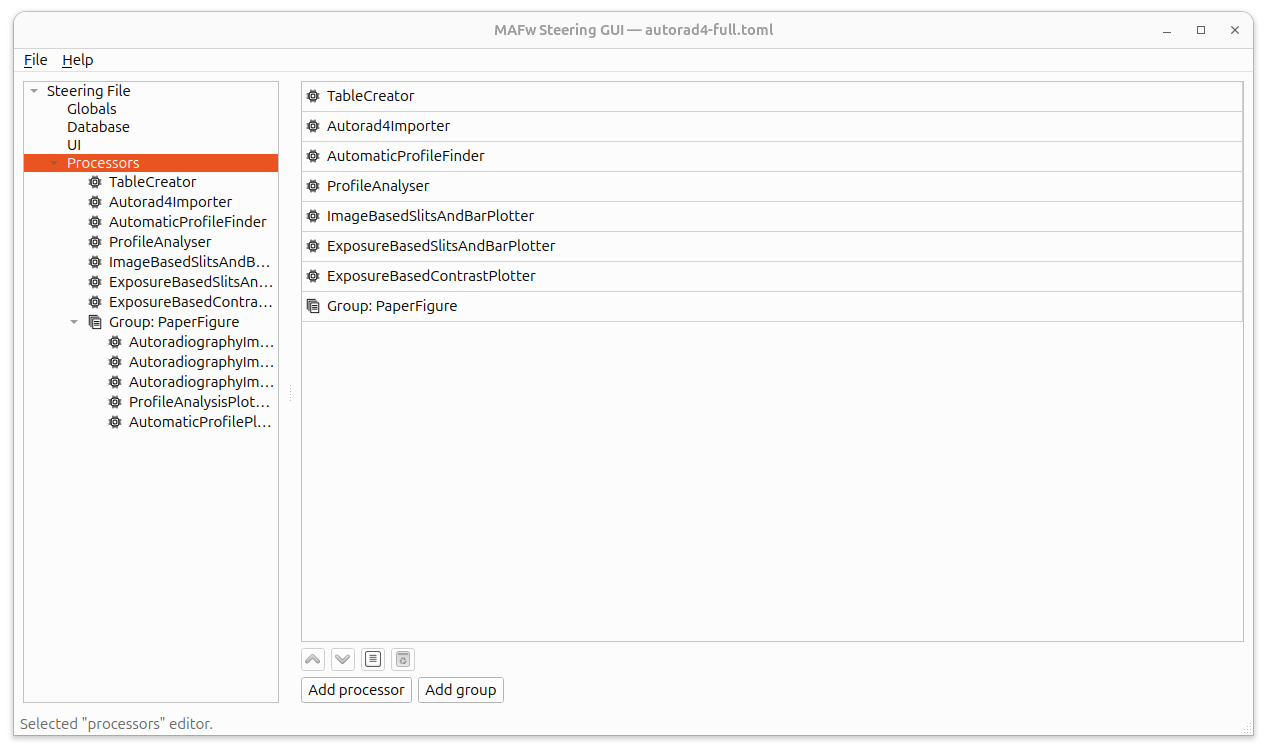
This is where you manage the processors in your analysis. To display this editor you can click on the Processor section of the steering file tree. You can add new processors from the list of available plugins, remove them, or change the order in which they appear in the file. The UI is meant to be self-explanatory and intuitive, so just drag and drop items to reorder them.
Processor Parameter Editor
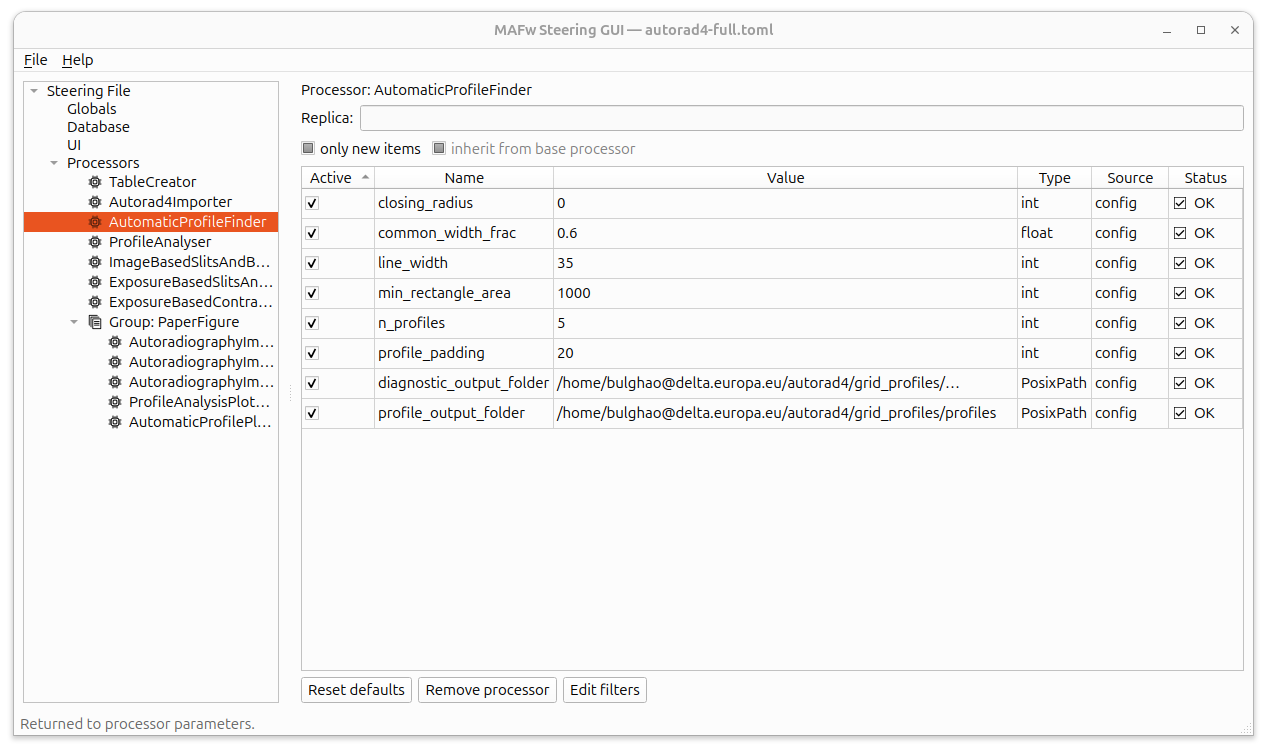
When you select a specific processor, you can assign it a specific replica name and you can edit all its parameters. The GUI dynamically builds an editor based on the processor’s requirements, so you’ll see checkboxes for booleans, number inputs for integers, and so on. If the parameter name is not clear enough, you can move the mouse over the parameter line and a tool-tip will present you the help text that you have entered in the processor.ActiveParameter definition.
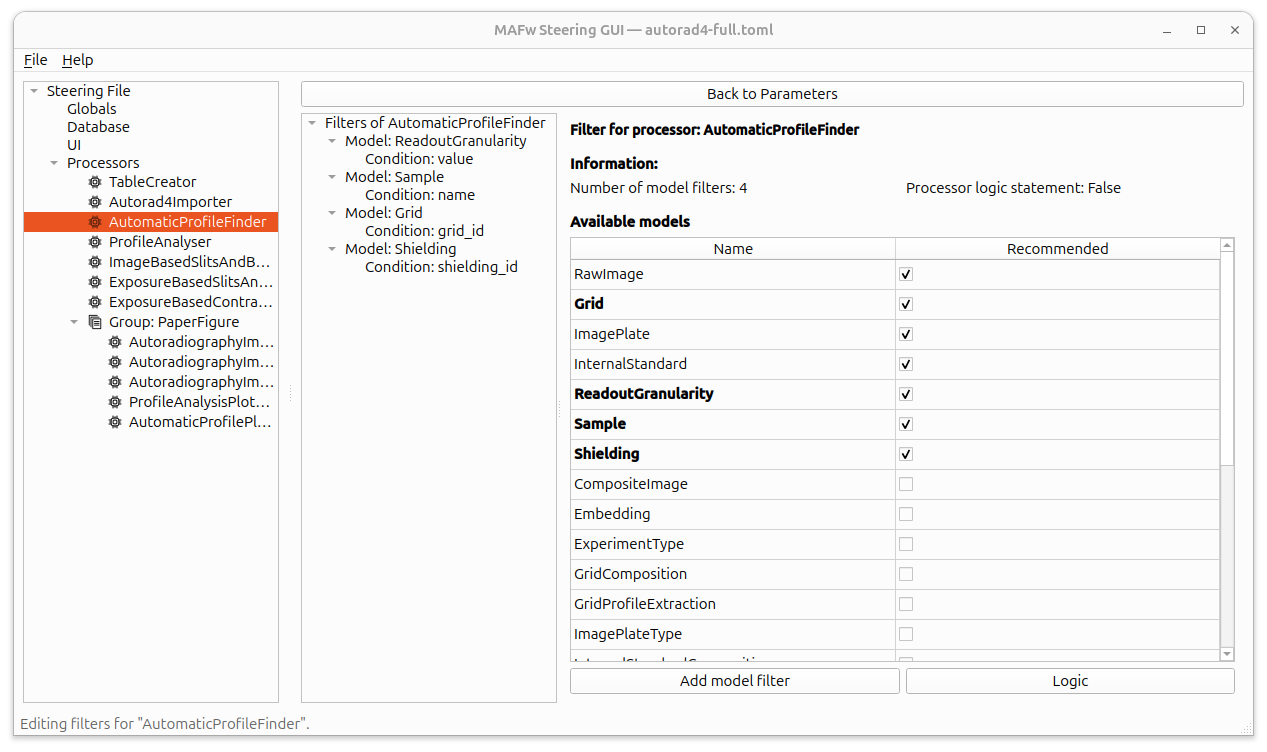
Within the processor settings, you can also manage filters:
Filter Manager: A central place to see and organize all filters applied to the processor.
Model filter editor: Select which data models this processor should operate on.
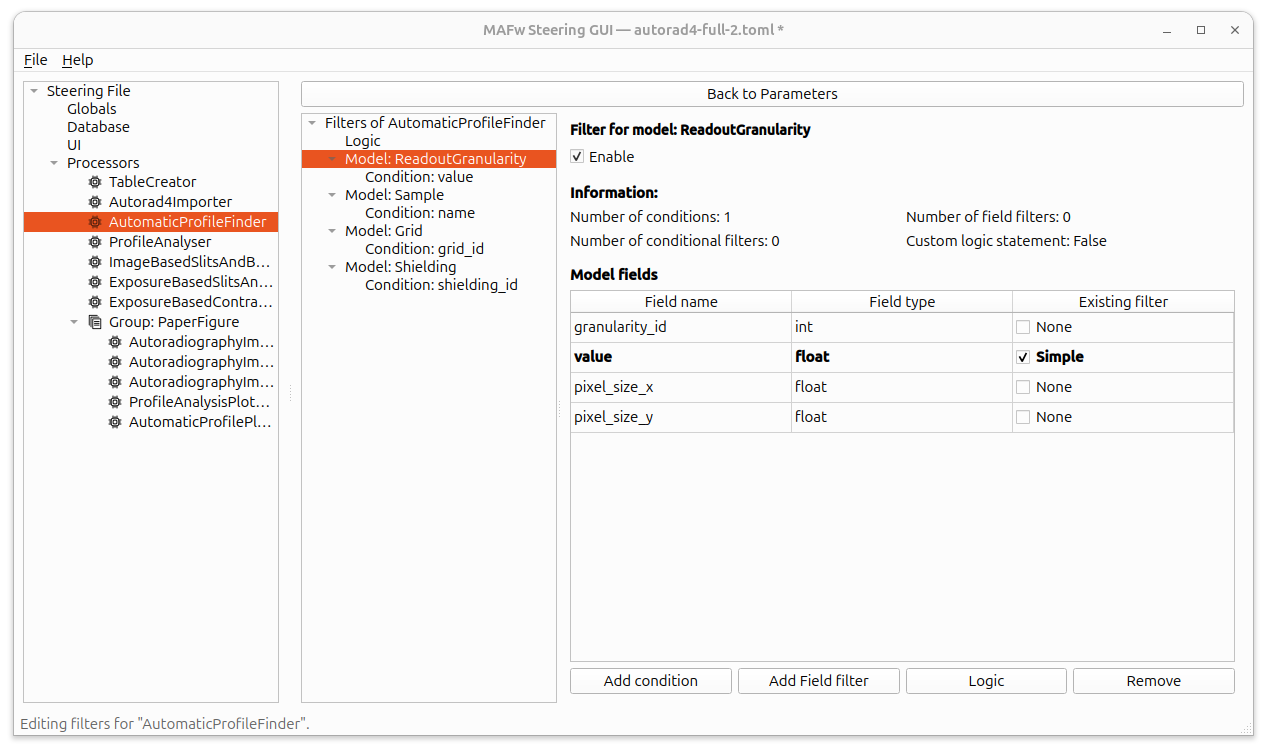
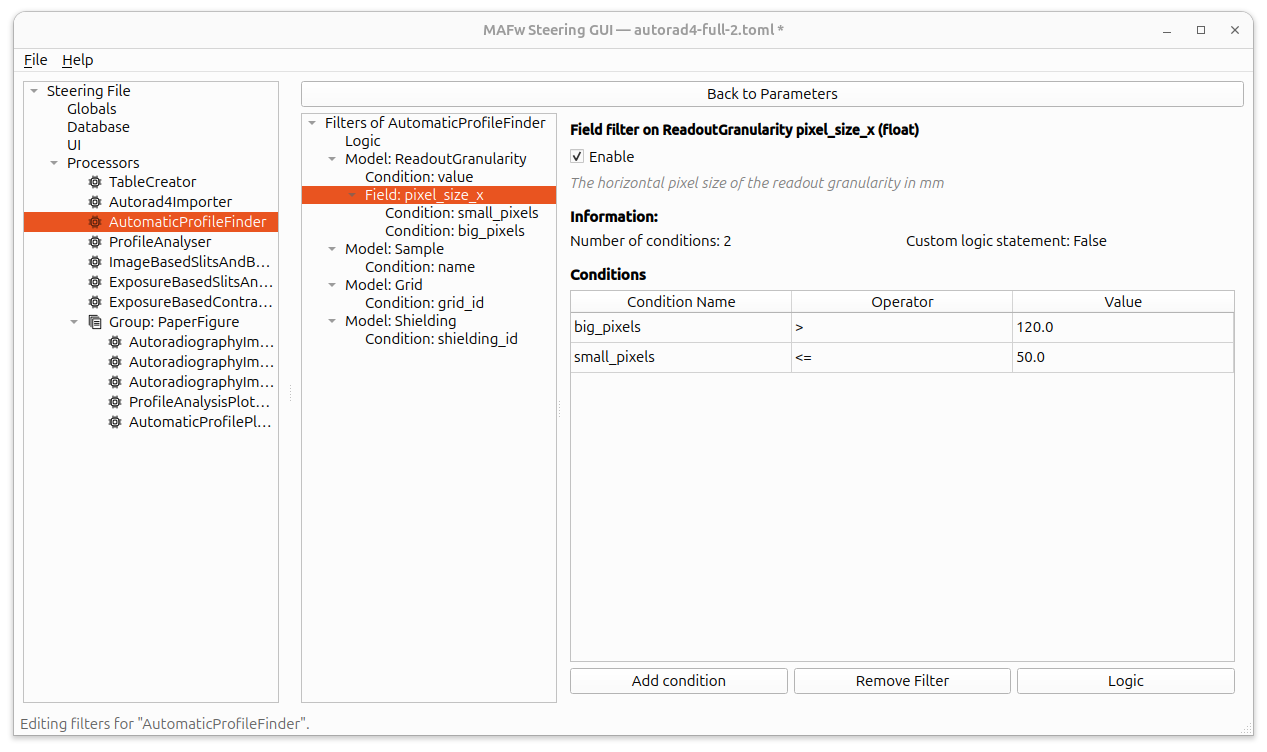
Field filter editor: Filter data based on specific field values.
Conditional filter editor: Create more complex rules, like checking if a value is within a range or exists in a predefined list.
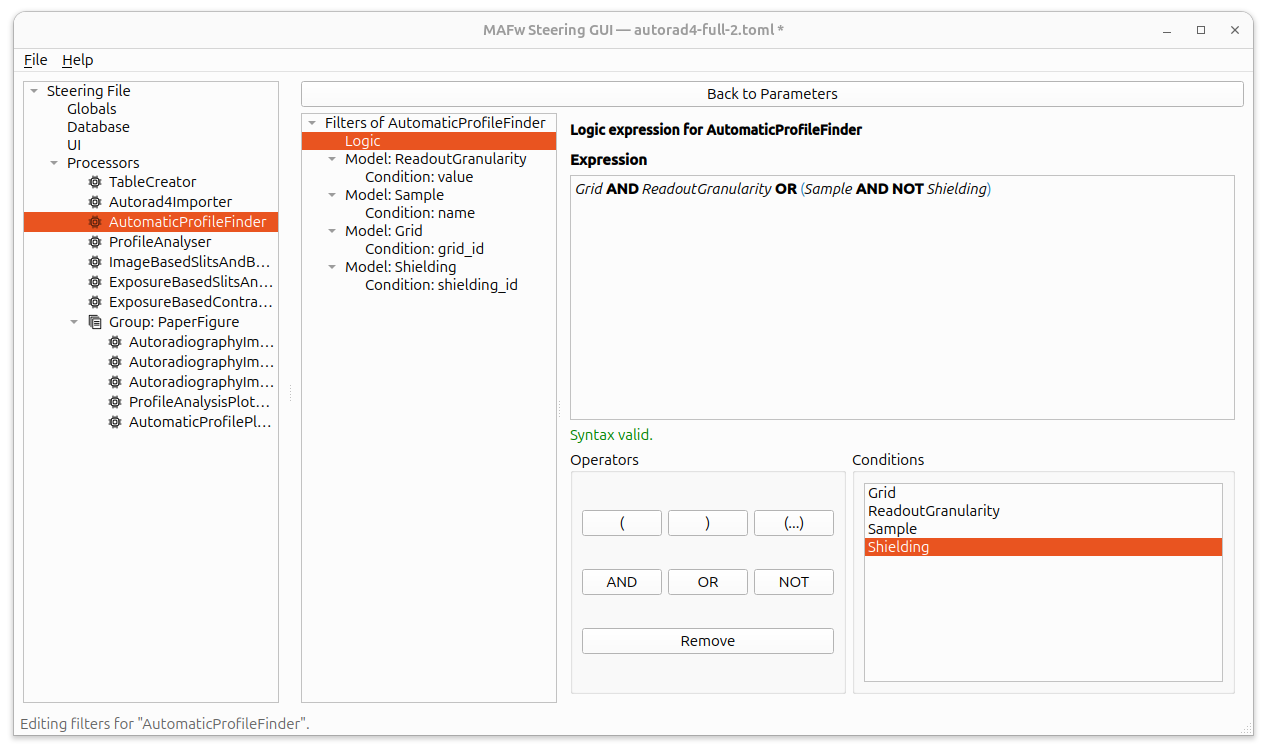
Logic editor: The ultimate tool for complex selections. It allows you to combine multiple filters using AND, OR, and NOT logic.
To access the filter manager, just click the Edit filters button for the specific processor and there you can operate directly on the hierarchical structure of MAFw filters. Here you will experience the big advantage of the GUI approach, you do not have to remember the database model names or even worse the field names, the GUI will present you with the available models and available fields. Just follow your instinct and do not forget to explore the context menu. The logic editor is another example of how the GUI can simplify your life. You can either write directly the logical statement and get suggestions for the available names and real time validation, or you can use the buttons and the table to build a sentence just by clicking.
Group Editor
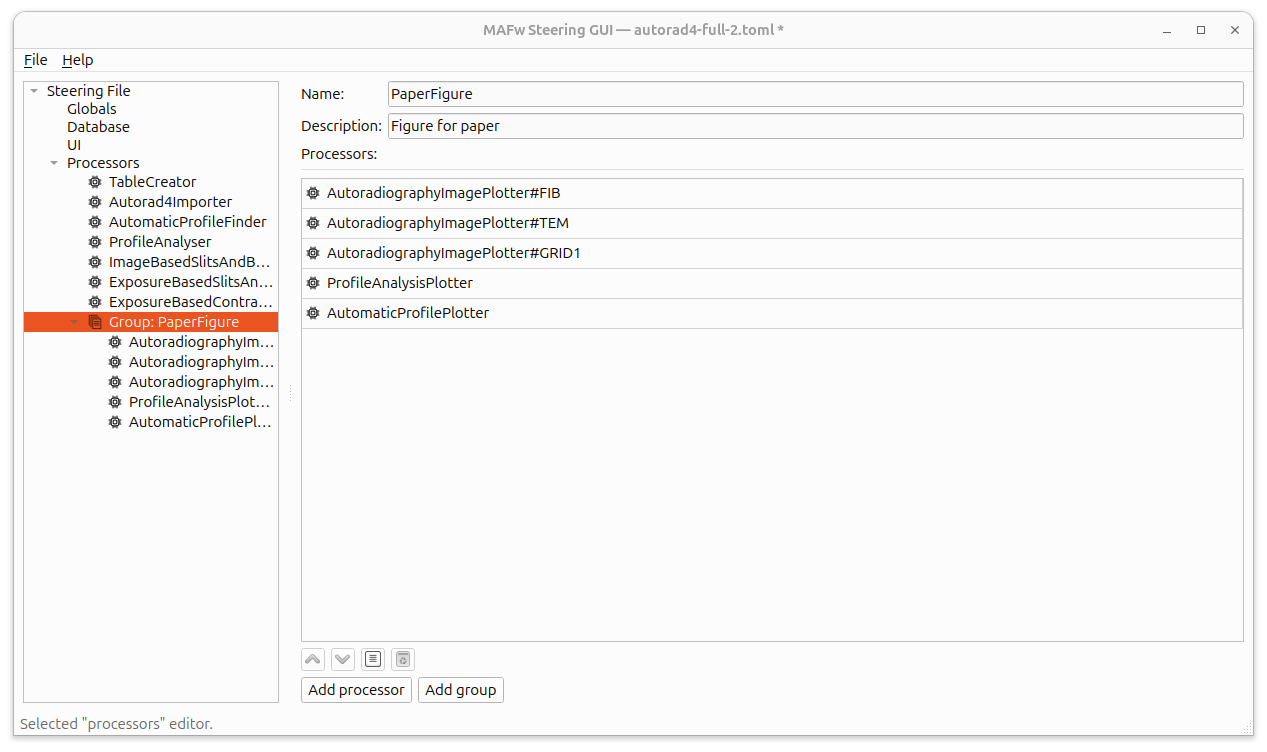
Groups allow you to bundle processors together. This is useful for organizing complex workflows or for running specific parts of your analysis independently. You can pick which processors belong to each group and the GUI will make sure you don’t accidentally create any “infinite loops” of groups calling each other.
The backbone of the GUI: the Steering Builder
Note
This is a very technical chapter that you can skip if you are not interested in developing tools that will programmatically generate steering files.
The Steering GUI is one nice tool that provides an easy and intuitive interface to our in-memory editable steering model, the so called SteeringBuilder.
The mafw.steering package exposes a TOML-centric builder that is completely decoupled from processor instantiation. It reads and writes steering files while keeping metadata editable via a set of dataclasses, a validation layer, and a tomlkit serializer so that any front-end tools can collaborate without touching the execution engine.
For the moment, the builder is mainly used by the Steering GUI, but in the era of Agentic AI, we might provide soon a MCP server exposing the builder API layer so that you would be able to use your favorite AI Agent to build the steering file from a natural language description of what you would like to achieve.
Overview
The MAFw world is divided in two hemispheres: we have the so-called execution framework, where the Runner is reading a steering file in TOML format, parsing a configuration dictionary out of it, build up and configure the pipeline accordingly and finally run it!
The other hemisphere is where the steering file is generated, and here the main role is played by the Builder. This is a in-memory editable model of the steering file and the user can build and edit each and every element of the steering file interacting with the API. When finished, the builder content can be serialized generating a validated steering file that can be provided to the Runner.
In other words, the TOML steering file is the only point of contact of the two hemispheres. hand, or by an MCP agent.
Builder API
SteeringBuildertracks globals, per-processor sections, groups, database settings, and interface configuration without ever touching a processor class.Processor helpers can add/remove references, manage replicas, tune parameters, and edit filters (fields, logic strings, and conditionals).
Group helpers keep
processors_to_runlists readable and detect cyclic definitions early.The builder exposes
to_document/writeto hand TOML documents to other code or to disk.
Serialization & Validation
serializer.serializeemits TOML via tomlkit, preserving insertion order and honoring the required section order: global scalars,DBConfiguration, processor sections, replicas, group sections, and finallyUserInterface.Filters appear as
[Processor.__filter__.Model]sections. Replica tables optionally emit__inheritance__ = falsewhen requested.validation.validateenforces structural rules such as non-emptyprocessors_to_run, valid references, and absence of group cycles. No processor metadata is instantiated or expanded.